Category Archives: Macintosh

Thoroughly Modern: Mini!

The vast bulk of my clients with desktop Macs own iMacs. As their machines age out and they come to me for replacement computers, I’ve been steering them in a different direction. I thought I’d take the time to put this advice, and my reasoning for it, here in the blog for my general client base.


If you lived through the ’60s, you might remember the popular debates over which was the superior entertainment system — console models or component stereos? The factor that doomed the console model was component failure — if your component turntable broke, you could throw it out and replace it; but in a console model you had to discard and pay to replace all the working components as well, or live with a dead turntable indefinitely.

The iMac is the console model of computers. The screen, processor, camera, and speakers are yoked together. If any of them gets damaged or dies, you have to abandon the rest and buy a new unit, or live with the faulty component. In particular, if your processor becomes obsolete, you have to abandon a perfectly good, expensive screen.

The iMac has also become unserviceable by anybody but Apple, what with having to service the electronics by first removing the screen, which is often glued in and/or connected by ribbon cables so fragile that they have a life of roughly three insertions before dying. I used to perform hardware service on iMacs, but I simply no longer dare.


The alternative I recommend to my clients these days is the Mac Mini. It has processor, memory, and storage, all in a box you can pick up in one hand. Speed-wise, it compares favorably with the iMac — in current base configurations of both, the Mini is 20% faster than the iMac in single-core tasks, and up to 50% faster in multi-core tasks. And price-wise, it’s 40% less expensive — that’s $600 you can spend on the “other” components, and it’s the only time you’ll need to do that (all at once, anyway). It also has more connectivity ports than the iMac, some of which are on the front so you can plug things (like phones) in and out without needing to turn it around. You can tuck it way out of your way on your desk, or even on a shelf, especially with an Apple Bluetooth keyboard and mouse.


You’ll need to buy some other components for your (first) Mini.

(Brands, models, and prices of compatible gear mentioned below are for illustrative purposes only, and are not specific product recommendations.)

You’ll need a display screen. Practically no third-party screen will have the high pixel density (sharpness) of an Apple Retina screen, but that’s why the Apple screen is so expensive out of the box. A typical 27″ (larger than the iMac) commercial screen (ex: Dell S2725QC) runs about $325. Some (like the Dell) even include integrated stereo speakers for that price — often not superb, but absolutely adequate. And if you want to live large, you can run 32″ or even larger screens with the Mini (though the display price jumps quite a bit beyond 32″). You can also choose to free up desk space by mounting it on a wall — look for a model offering a large VESA mount support (to minimize twisting). You’ll want to make sure it has at least one HDMI connector (two gives you a spare), and that you have an HDMI cable of adequate length. (Some displays use USB-C connectors — they should also work with the Mini, though I haven’t encountered any on service calls.)

You’ll need a keyboard and a mouse or trackpad. If you’re upgrading from an iMac, there’s no reason you can’t use the ones you already have. (You’d be paying for a redundant bundled pair on a new iMac.) If you’d prefer something newer or nicer, you can obtain it at any time, on your own schedule.

The speaker on the iMac is… audible… but otherwise mono and unimpressive. On the Mini on which I stream videos, I have a pair of Bose Companion II’s, currently available on Amazon (refurb only) for $165. My other Minis are outfitted (if at all) with add-on speakers from older PCs, obtained from thrift stores for $5-$20 the pair, perfectly adequate for FaceTime, Zoom calls, and the like.

Aside from the display, the other thing the Mini absolutely does not provide is a camera. You can pick up an impressive Logitech C120 series for about $70 (or a Chinese knockoff for $30-40) if you think you need one. Or — if it’s something you use only occasionally — you can easily use your own iPhone as your Mini’s camera by enabling “Continuity Camera” in the Mini’s AirPlay options (I can walk you through this if you can’t figure it out).


If you’re upgrading to a contemporary Mac, there are a couple more considerations which will be true no matter what model you upgrade to.

First off, say sayonara to USB-A ports. No current Apple product (except the niche Mac Studio) offers them any longer. For each of your existing USB-A cables (printer, solar controller, USB hub, phone cable, or wired keyboard/mouse) you’ll need a USB-C/A adapter. Apple sells some, but they’re exorbitant. I’ve been buying (like Chiclets) the Elebase LKUSBCOTGA — four for $9 at Amazon. (Make sure not to order the reverse-sex model, with the male USB-A — they have their uses, but not for your Mac). Having a set of these on hand before unboxing your Mini avoids installation delay, especially if you have a wired keyboard or mouse.

The second general consideration is that all current Apple products are now built with Apple silicon (M-series), not Intel processors, and as of a few months ago all come with the Golden Gate release, which discontinued support for Intel apps. If you run nothing but Apple apps, that’s cool. If you are running third-party apps on your current Intel Mac (such as game collections, Microsoft Word/Office, Adobe suites, browsers, financial packages, or individual tools/apps downloaded from other than the Apple Store), they won’t work on your new Mac unless you upgrade to the corresponding app versions that run on Apple Silicon. The upgrade may or may not be free, and in the case of Microsoft (and possibly Adobe) apps, the fee may be significant. The last possibility is that there may be no Apple Silicon version of the app (because the app is no longer actively maintained), in which case you will have to find a different replacement or do without. Again, this is a problem you will have upgrading any Intel Mac to any Apple Silicon Mac — it’s a bullet you have to bite.


So if you’re thinking it’s about time for a new desktop Mac, give me a call to find out if the Mac Mini is the right choice for you.

BAD ADVICE FROM APPLE

Disclosure: rant ahead.

When I started using Macintoshes back in 1986, one of the phrases you heard a lot was, “I use Mac because Macs just work.” If you wanted to perform some task on a Mac, you could usually just try the first method that came to mind, and it would almost certainly work. If there were three equally probable ways one might think of to do something, chances are that you could use all three to get to exactly the same place.

Over the past decade or so. the Mac has been gradually losing that polish. Nothing has been more disappointing than Apple’s habit of pressuring users to adopt a “shiny new feature” that is great for young, tech-savvy hipsters in cities with world-class services, but outright bad for a different, significant segment of users—without informing them when they’d be better off not adopting it.

Continue reading BAD ADVICE FROM APPLE →

Yes, but what’s the
SECRET secret password?

This tip is for Mac owners still running older devices and older (pre-Sierra) versions of the operating system.

A couple days ago, I had a client bring in a 2008 MacBook Pro running El Capitan, for me to move her files onto a brand new MacBook Air.

As I usually do, I asked her for the passwords I needed to do the transfer, then tried them out while she was still in the shop to make sure they all worked.

She mentioned that her Apple ID worked fine for the App Store, but her Mac wouldn’t accept it and kept asking for it. So we reset her password with the lost-password feature at icloud.com. Success.

Then, to make sure it was accepted everywhere in the Appleverse, I opened up iTunes, ran a pending version update, then asked for her account page. And that’s when I ran into some prime Apple weirdness.

When I typed in her Apple ID and password, it told me that the combination was incorrect.  But every time I did it, her phone would beep and say, “Someone is trying to use your Apple ID. Accept?” When she accepted, her phone would give her a six-digit authentication code… but of course there was no place to type it into the MacBook Pro because it had flatly rejected the password. 

Buffaloed, I called Apple.

The tech there had the correct answer right off the bat. Some older machines show this behavior, and there is a hack to get around it.

  1. Ask to login to your iTunes account.
  2. Get rejected.
  3. Hit accept on your iPhone and get the auth number (say, 987654).
  4. Now add this number to the end of the password you supply to iTunes. That is, if your Apple ID password is MyPassword, tell iTunes it is MyPassword987654.
  5. Apple should then let you log into your iTunes account.

You will have to do this every time you access iTunes on the old release until you upgrade to a newer OS. (Since she was moving up to a brand new Mac immediately, we didn’t need to pursue this further.)

Note that you may also need to use this trick in these situations to access your account at the App Store as well.


Spotlight crash fix

I’ve come across this one on multiple client machines this month.
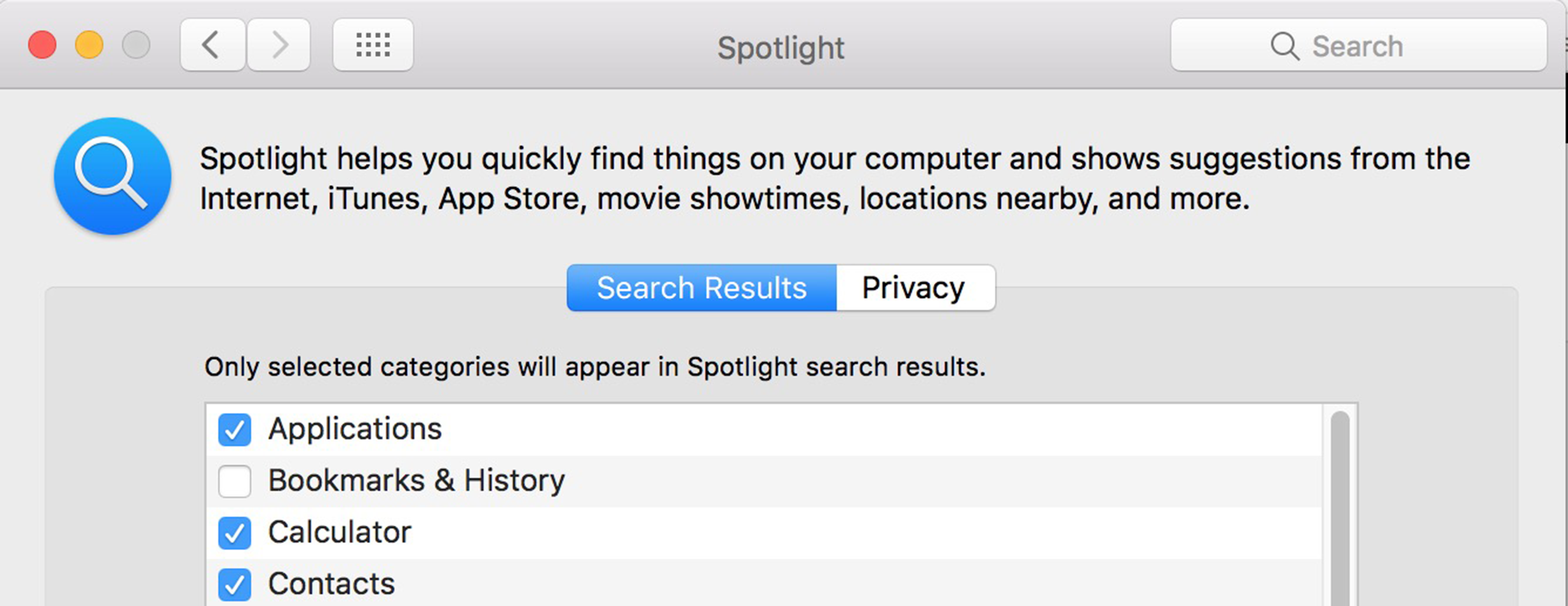

The symptom is simple: you invoke Spotlight (via the magnifying glass icon or command-space), and maybe four times out of five, within a second or so, no matter what you do, Spotlight crashes. You get a screen full of dump information with a button “Send to Apple.” If you type very quickly, you may be able to type your query, hit return, and even have it processed before the crash screen comes up.

This one is maddening, and plagued me for over a month before I found the simple solution.

Go to System Preferences / Spotlight, the Search Results tab. Uncheck the “Bookmarks & History” box.

That’s it.

Apparently, it’s common for something to crawl into one’s bookmarks or history that just flat crashes Spotlight. I don’t know exactly what it is, but I can live with having Spotlight not find things in there if they’re going to be more trouble than they’re worth.

The One Ring

"I'd like to run some tests on that 'One Ring to rule them all' ring. Can I borrow it for a few days?" "I thought you had it?"

Know that sinking feeling you get in the pit of your stomach when you realize that something really important is nowhere to be found? That’s what we get every time we ask a client for the password to his Macintosh, and the answer comes back, “I don’t remember.”

No one knows better than we do how many passwords a modern computer user has to juggle in the course of a day. Your email; your Facebook account; your banks; your photo collection; your credit cards; your pharmacy; hundreds of websites; and perhaps even your home thermostat.

The Mac OS does a reasonably good job of keeping track of (almost) every password associated with your life, by storing them automatically in a secure storage area called your keychain. That way, it can guard them against loss, present them automatically whenever needed, and keep your online life as manageable as possible.

This keychain is secured by the one password that isn’t itself stored in the keychain: the password you use to login to your Macintosh. That makes your Mac password, in effect, the one password that rules them all. Given that password, you can automatically or manually look up any other password you own in that keychain. Without that password, your entire digital life is toast. Having this one password can mean the difference between having to pay for one or two hours of repair time, or many hours of repair time plus many hours of your own time.

“Can’t I just pick a new password?”

Sure you can. But if it were that straightforward, what would keep anyone who walked off with your computer from “picking a new password” for it, and thereby gaining access to every bank account and credit card you possess?

Yes, there’s a straightforward procedure to force a new password onto a Macintosh account. But when you next log into it, you’ll be notified that your keychain is inaccessible, because it’s still encrypted with your original password… which, of course, you still don’t know. With the old password, it would be a simple matter to unlock the keychain to encrypt it with the new password. Without it, every other password you need (and don’t remember on your own) is locked up forever.

Regular visits to the mental gymnasium

The one feature undoubtedly responsible for more cases of “I forgot my password” than any other is the automatic login. It’s seductive because it promises to make your daily online life easier, and does… until your disk drive fails, or you fall victim to a ransomware or tech support scam, and you need non-trivial reconstructive work done on your Mac. At that point, not knowing your password (because it’s been months or years since you actually had to type it anywhere) is an extra kick in the ribs that you really didn’t need while you were down. (We are seeing much the same syndrome now occurring among users of iPhones and iPads due to the availability of “Touch ID.” A password you never type is a password you soon forget.)

Our advice is never to enable automatic login. Computers get stolen; the kids and grandkids get into things they shouldn’t when nobody is around; and most importantly, typing in your password every time you log into your Mac is the best and most effective way to ensure you never forget it.

(If you’re currently running with automatic login enabled, and realize you have indeed forgotten your login password, contact us for help before doing anything else, including disabling automatic login. We can ensure that the contents of your keychain(s) are safe-stored for future accessibility before forcing your account to a new, known password.)

The Big Three passwords

Our advice to our clients is that they keep special track of three main passwords. With these passwords, you can recover most any other password you own. Just like you wouldn’t go for a drive without pocketing your license, you shouldn’t go online without having a record of these three passwords in a secure place.

  1. Your Mac login password, for all the reasons outlined above. This one will let you into your keychain, where most of the rest of your passwords are safe-stored.
  2. Your Apple ID (App Store / iTunes Store / iCloud) password. This password is a major special case, as it doesn’t exist in your keychain (unless you stored it there by hand as a note, which you may want to consider now that you know it’s possible). This is the password you need to reclaim all your purchased apps, tunes, and movies, and to reestablish connections with your iDevices.
  3. The password to your primary email address. If you forget or misplace either or both of the other two, this is the one you will need in order to receive responses to all the “reset my password” requests you will be making to all your secure websites (banks, etc.) as well as resetting your Apple ID password.

(If you’ve enabled iCloud Keychain, you also chose a six-digit iCloud Security Code which you may consider recording somewhere, as it won’t be in your Mac keychain—again, unless you put it there by hand. However, it’s not strictly necessary to have unless you’ve lost every other Apple device you own, as you can authorize any related activity from any of your Apple devices.)

Exercise records discipline

When we advise keeping copies of this information in a secure place, that also implies having a single place for the information, identifying which password is for what, and destroying obsolete versions of the passwords. As repair engineers, we are too often confronted with “records” consisting of multiple notebooks, index cards, and/or sticky notes containing several dozen total passwords, most of which have long since been superseded by others, with none of them identified as to account or function. To top it off, sometimes the working password is not even among them, having been recorded on an entirely separate piece of paper located elsewhere. A little organization and records discipline can mean the difference between a smooth service call and locking yourself out of your digital data indefinitely.

We hope you’ll consider the tips presented here and choose to adopt as many as possible in your own life, to keep your valuable data accessible to you while remaining secure from others.


Bad Apple Mail—No Password!

This bug really burns me, because it’s been around forever, and Apple just isn’t doing anything about it.

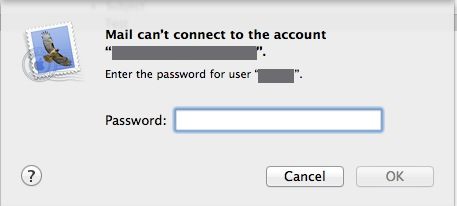
Anyone who has used Apple Mail for more than a week has seen the following dialog box:

mailcantconnect

Of course, the natural response is to obey and type your password.

Don’t do it. 

Here’s why:

There are a half-dozen or so reasons why a mail transaction will fail. The mail server may be busy, hung, or dead. Your Wi-Fi may be down or your ethernet cable may be loose. There could be a network interruption in the greater internet somewhere between you and your mail server. Or, you could actually have supplied the wrong password for the account.

Unless your mail account is brand new, or you recently changed your mail password, the probability that this last choice is really your problem is vanishingly small.

However, that’s not Apple Mail’s opinion. “Couldn’t contact the server? Oh no, it has to be a bad password!” So Mail puts up this dialog box, inveigling you to type in your password again.

There is no upside to complying with this request. 

There are two probabilities here that absolutely dwarf all others: you will type in your password correctly, which won’t solve anything because your password was never the problem; or you will type in your password incorrectly, at which point you have now compounded your original problem by layering a worse one on top of it.

The real joker in the woodpile here is that one of the biggest reasons for typing in your password incorrectly is because you have actually forgotten your correct password. Now, a lost mail password can be retrieved using Keychain Access on your Mac… unless of course you have just overwritten it with a bad password because you responded to this idiotic query from Mail.  😡

The good news is that if you avoid thrashing at this juncture, you can still recover. Mail stores the POP/IMAP (incoming) account password separately from the SMTP (outgoing) account password, and in almost all cases known to man, they are the same password. Use Keychain Access to view the one you haven’t yet damaged, and beat this particular reaper.

Mail Mischief

[May 21 addendum: I’ve corrected this posting to identify the email service as Cox, not Gmail, and to append some additional information on defeating this bug.]

On this one, I suspected poltergeists.

A client called me complaining that she was periodically unable to send mail using her Cox account. We arranged a remote service session, and I found that the port and authentication type parameters for at least one of her outgoing server configurations were incorrect for Cox. I repaired them and verified that the result worked.

The next day, the client wrote to say she was having the same problems. I logged in again, and found that one of the port numbers had changed back to the same incorrect value, and the authentication setting had changed from “password” to “MD5 Challenge-Response.” I asked her if she changed those, and she said no, so I changed them back again and told her there would be no charge for the session.

Two days later, she reported to me that her service has been sporadic. Sometimes she could send mail, and sometime she couldn’t. Sometimes she could send it by switching to the SMTP server on her husband’s account, and sometimes she had to do the reverse.

I got back onto her system, and I found that the configuration values on her account have been changed again, and to values (like port 25) that don’t even work with Cox and never have.

I changed the broken account back to its proper value, whereupon the other one — which had just tested as working — immediately went out of whack!

I switched to it and found that the port had changed again… during the ten seconds that I was working on the other one.

Several times I ping-ponged back and forth, ports and authentication methods mysteriously changing themselves to the wrong values repeatedly during the course of a minute or so.

At this point I began to suspect malware, as improbable as that was. While I was downloading ClamXAV onto her system, I did a fast Web search on the symptoms. I was almost immediately rewarded with a posting describing exactly the same symptoms, and the fix for it.

It seems that in Yosemite, in the advanced section of the e-mail account configuration, there is a new checkbox called, “Automatically detect and maintain account settings.” Yosemite sets this on by default.

The downside is, it’s entirely brain-damaged. It’s just as likely to break your configuration as to maintain it, and is perfectly capable of doing either dozens of times a day, behind your back.

I turned that pesky option off, and again locked the port and password fields to working values. I’m hoping I’ll hear no more of this problem (at least from this client) until Apple finally fixes their buggy code.

[Addendum, May 21: Since posting this, I’ve heard from several other users with exactly the same problem. Informed speculation has it that it is Cox themselves who are feeding these erroneous values back into Mail, and not an Apple bug at all.

[Additionally, Yosemite also added a second “Automatically detect and maintain account settings” checkbox in the “Edit SMTP Server” area itself. If you don’t turn off both this flag and the one in Account / Advanced, the hits will just keep on coming. Make sure they stay off, as at least one user reports the one in Account / Advanced mysteriously turning itself back on right after he turned off the one in “Edit SMTP Server.”]