
The vast bulk of my clients with desktop Macs own iMacs. As their machines age out and they come to me for replacement computers, I’ve been steering them in a different direction. I thought I’d take the time to put this advice, and my reasoning for it, here in the blog for my general client base.
If you lived through the ’60s, you might remember the popular debates over which was the superior entertainment system — console models or component stereos? The factor that doomed the console model was component failure — if your component turntable broke, you could throw it out and replace it; but in a console model you had to discard and pay to replace all the working components as well, or live with a dead turntable indefinitely.
The iMac is the console model of computers. The screen, processor, camera, and speakers are yoked together. If any of them gets damaged or dies, you have to abandon the rest and buy a new unit, or live with the faulty component. In particular, if your processor becomes obsolete, you have to abandon a perfectly good, expensive screen.
The iMac has also become unserviceable by anybody but Apple, what with having to service the electronics by first removing the screen, which is often glued in and/or connected by ribbon cables so fragile that they have a life of roughly three insertions before dying. I used to perform hardware service on iMacs, but I simply no longer dare.
The alternative I recommend to my clients these days is the Mac Mini. It has processor, memory, and storage, all in a box you can pick up in one hand. Speed-wise, it compares favorably with the iMac — in current base configurations of both, the Mini is 20% faster than the iMac in single-core tasks, and up to 50% faster in multi-core tasks. And price-wise, it’s 40% less expensive — that’s $600 you can spend on the “other” components, and it’s the only time you’ll need to do that (all at once, anyway). It also has more connectivity ports than the iMac, some of which are on the front so you can plug things (like phones) in and out without needing to turn it around. You can tuck it way out of your way on your desk, or even on a shelf, especially with an Apple Bluetooth keyboard and mouse.
You’ll need to buy some other components for your (first) Mini.
(Brands, models, and prices of compatible gear mentioned below are for illustrative purposes only, and are not specific product recommendations.)
You’ll need a display screen. Practically no third-party screen will have the high pixel density (sharpness) of an Apple Retina screen, but that’s why the Apple screen is so expensive out of the box. A typical 27″ (larger than the iMac) commercial screen (ex: Dell S2725QC) runs about $325. Some (like the Dell) even include integrated stereo speakers for that price — often not superb, but absolutely adequate. And if you want to live large, you can run 32″ or even larger screens with the Mini (though the display price jumps quite a bit beyond 32″). You can also choose to free up desk space by mounting it on a wall — look for a model offering a large VESA mount support (to minimize twisting). You’ll want to make sure it has at least one HDMI connector (two gives you a spare), and that you have an HDMI cable of adequate length. (Some displays use USB-C connectors — they should also work with the Mini, though I haven’t encountered any on service calls.)
You’ll need a keyboard and a mouse or trackpad. If you’re upgrading from an iMac, there’s no reason you can’t use the ones you already have. (You’d be paying for a redundant bundled pair on a new iMac.) If you’d prefer something newer or nicer, you can obtain it at any time, on your own schedule.
The speaker on the iMac is… audible… but otherwise mono and unimpressive. On the Mini on which I stream videos, I have a pair of Bose Companion II’s, currently available on Amazon (refurb only) for $165. My other Minis are outfitted (if at all) with add-on speakers from older PCs, obtained from thrift stores for $5-$20 the pair, perfectly adequate for FaceTime, Zoom calls, and the like.
Aside from the display, the other thing the Mini absolutely does not provide is a camera. You can pick up an impressive Logitech C120 series for about $70 (or a Chinese knockoff for $30-40) if you think you need one. Or — if it’s something you use only occasionally — you can easily use your own iPhone as your Mini’s camera by enabling “Continuity Camera” in the Mini’s AirPlay options (I can walk you through this if you can’t figure it out).
If you’re upgrading to a contemporary Mac, there are a couple more considerations which will be true no matter what model you upgrade to.
First off, say sayonara to USB-A ports. No current Apple product (except the niche Mac Studio) offers them any longer. For each of your existing USB-A cables (printer, solar controller, USB hub, phone cable, or wired keyboard/mouse) you’ll need a USB-C/A adapter. Apple sells some, but they’re exorbitant. I’ve been buying (like Chiclets) the Elebase LKUSBCOTGA — four for $9 at Amazon. (Make sure not to order the reverse-sex model, with the male USB-A — they have their uses, but not for your Mac). Having a set of these on hand before unboxing your Mini avoids installation delay, especially if you have a wired keyboard or mouse.
The second general consideration is that all current Apple products are now built with Apple silicon (M-series), not Intel processors, and as of a few months ago all come with the Golden Gate release, which discontinued support for Intel apps. If you run nothing but Apple apps, that’s cool. If you are running third-party apps on your current Intel Mac (such as game collections, Microsoft Word/Office, Adobe suites, browsers, financial packages, or individual tools/apps downloaded from other than the Apple Store), they won’t work on your new Mac unless you upgrade to the corresponding app versions that run on Apple Silicon. The upgrade may or may not be free, and in the case of Microsoft (and possibly Adobe) apps, the fee may be significant. The last possibility is that there may be no Apple Silicon version of the app (because the app is no longer actively maintained), in which case you will have to find a different replacement or do without. Again, this is a problem you will have upgrading any Intel Mac to any Apple Silicon Mac — it’s a bullet you have to bite.
So if you’re thinking it’s about time for a new desktop Mac, give me a call to find out if the Mac Mini is the right choice for you.
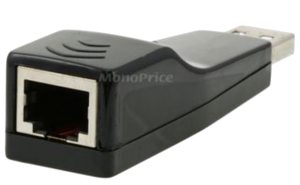 Until recently, I’ve been using
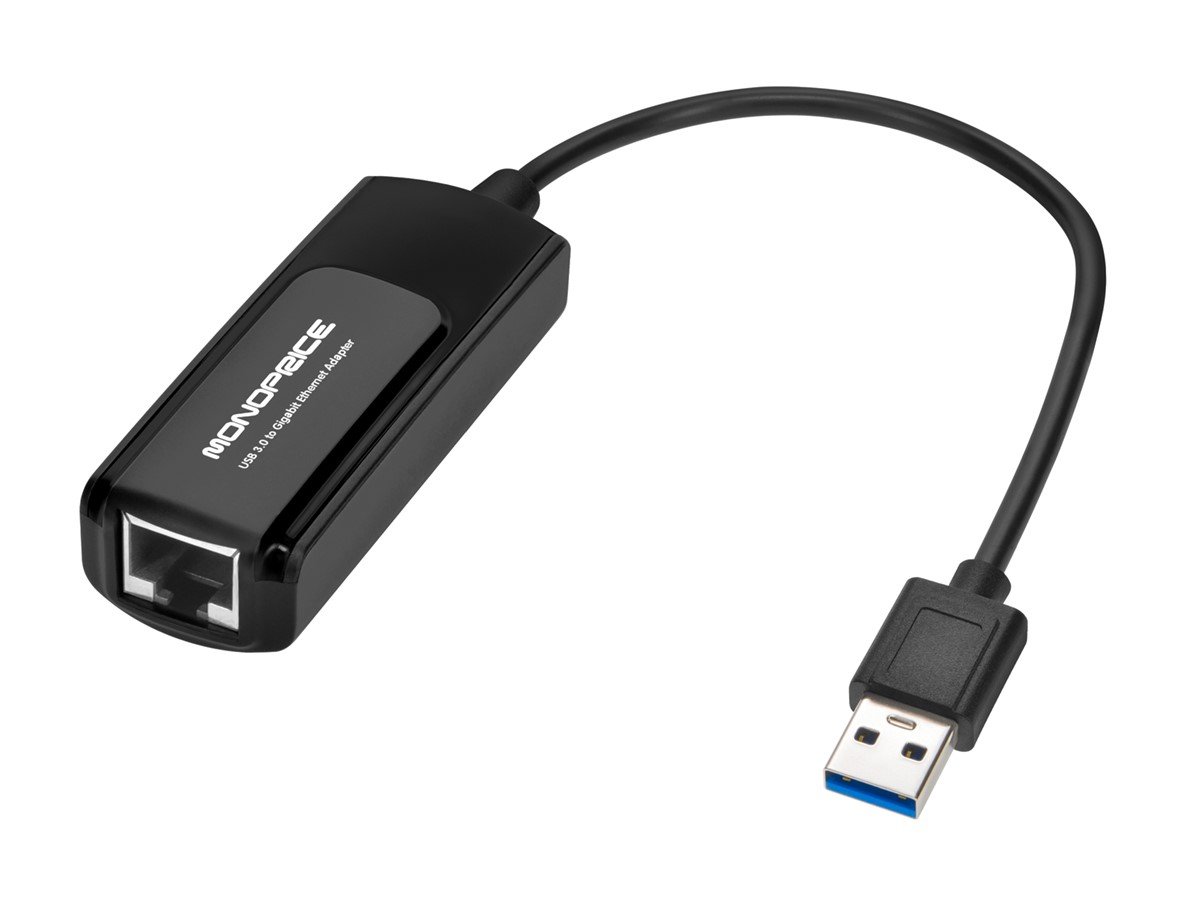 Since I’m a fan of Monoprice’s products,
 When I finally got tired enough of picking my cables out of the dirt, I went hunting again. I found
 In case you’re wondering whether my search ever succeeded, I eventually found
 Several times a month, various clients will ask me about setting up a new printer they have acquired. I give them all the same advice: